Set parental controls
Parental controls on The Roku Channel and Howdy
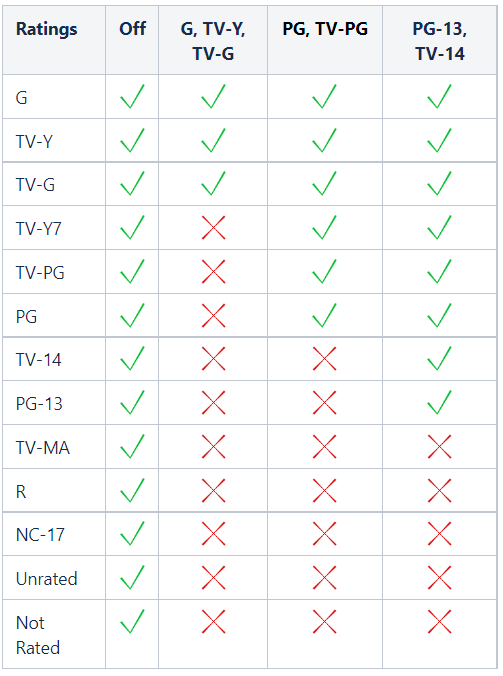
Parental controls on The Roku Channel and Howdy allow you to limit the shows and movies your family can watch by requiring a Roku PIN to watch content with certain ratings (see the ratings table).
All movies and shows will appear when you search, but you will need to enter your Roku PIN to watch them. You can also set up your Roku PIN so that it’s required to add an app or to subscribe using your Roku account. You must be signed in to your Roku account for parental and PIN controls to take effect. The setting doesn’t work in Guest Mode.

Note: Parental controls only apply to The Roku Channel and Howdy on your Roku device, not to the website, mobile app, or other streaming services. Many streaming services offer parental controls.
Parental controls on other streaming services
Many streaming services have their own parental controls. Some streaming services also offer features and services specifically designed for kids. If you have questions about a particular streaming service’s parental control settings, contact the service directly.
Parental controls for Live TV input
Roku TVs have parental controls that let you limit content on the Live TV input, including "over-the-air" channels from your HDTV antenna and streaming TV channels on the Live TV Channel Guide. This only applies to content you watch on the Live TV input.
To access parental controls for your Roku TV:
- Press Home

- Scroll and select Settings
- Select Parental controls
The first time you’ll need to create a 4-digit PIN that must be used to access the parental control settings.
Note: The parental control PIN is different than the Roku PIN. After you enter your parental control PIN, the screen scrolls right to reveal the parental control options.
Set up TV tuner before using parental controls
Before parental controls can be configured to block Live TV programs, the TV tuner must be set up.
- Select TV tuner
- Your Roku TV will prompt you to scan for channels
- After channels are detected, the parental control options will become available in the TV tuner menu.
Blocking certain TV programs on Live TV
The Roku TV has the ability to block TV broadcasts based on rating data that is broadcast within the TV signal. Blocking can be independently configured based on:
- Enable parental controls: Turn parental controls on/off.
- TV ratings: Set US television rating limit (Y, Y7, G, PG, 14, MA) and set options to block programs by content type (V, S, L, D). More about TV ratings.
- Movie ratings: Set US movie rating limit (G, PG, PG-13, R, NC-17). More about movie ratings.
- Canadian English ratings: Set Canadian English rating limit (C, C8, G, PG, 14+, 18+). More about the Canadian English ratings classification.
- Canadian French ratings: Set Canadian French rating limit (G, 8+, 13+, 16+, 18+). More about the Canadian French ratings classification.
- Block all unrated programs: Set option to block/unblock unrated programs.
As you watch broadcast programs on the Live TV input, tune to different channels, or browse Live TV Channel Guide, the current program will be blocked if the rating of the program falls outside the specified rating limits or if the program is unrated and you have elected to block all unrated programs. If a program is blocked, then the video is obscured, the audio is muted, and the Live TV Channel Guide does not list the title or description. You must enter your parental controls PIN to unblock and access the program.
Change your 4-digit PIN for the Live TV input
Allows you to change the 4-digit PIN used to access the Parental Controls menu.
- To make this change, select Change PIN and enter a new PIN.
Reset all parental control settings for the Live TV input
Clears all parental control settings, including the PIN.
- To reset, highlight Reset parental controls and follow the on-screen instructions.
Roku Mobile App age verification
Users' ages are automatically verified by the Google Play Store and Apple App Store when downloading the Roku Mobile App. If your app store account says you are under 18, the app will be blocked from use.
Last updated at 2/19/2026 7:57:11 PM
Was this article helpful?
Related articles
Need more help?
