What type of remote does my Roku device use?
Depending on which Roku® streaming player or Roku TV™ you own, you will have one of two general types of remote:
- Roku simple remote
- Roku voice remote
If you already own a Roku streaming device, you can find guidelines in this article to help identify the voice button and use that information to determine the general type of remote you own. You can also learn about features available on the current offering of Roku voice remotes.
If you are looking to purchase a new Roku streaming device, visit the product comparison chart to learn about the remotes included in the current lineup.What is a voice button?
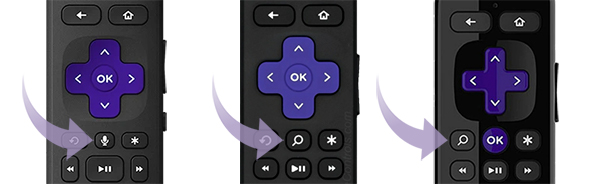
All Roku voice remotes have a voice button located near the purple directional pad that has either a microphone icon  (on newer remotes) or a magnifying glass icon
  (on older remotes). If your remote has a voice button (as seen below), you have a Roku voice remote. If it does not, you have a Roku simple remote.
What is a Roku simple remote?
A Roku simple remote uses invisible infrared (IR) light to transmit button presses a short distance. For a simple remote to operate reliably, it must be pointed directly at the Roku streaming device (it is controlling) and there must be nothing that could block the signal from travelling to the front of that device (where the IR receiver is located).
Roku simple remotes include the buttons seen in the example below including channel shortcut buttons that let you launch popular streaming channels with a single press.
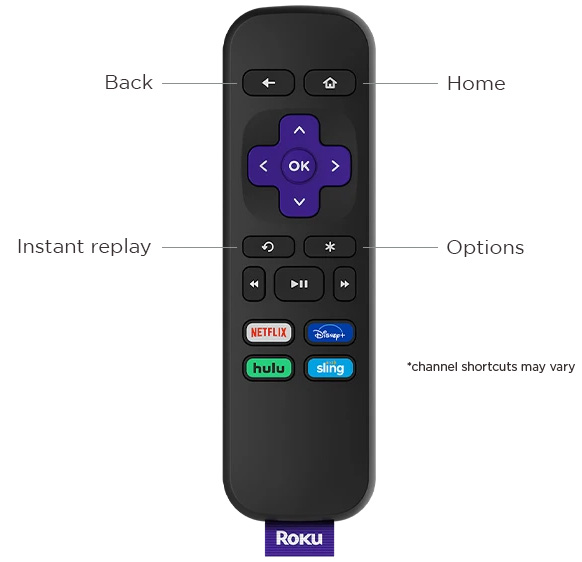
A simple remote is included with many Roku TV models and some streaming players such as the current generation Roku Express and Roku Premiere. The simple remote included with a Roku TV has all the buttons seen on a player remote (like the example above), along with buttons to control power and volume on the TV.
To set up a simple remote, you only need to insert new matching batteries and point the remote at the front of your Roku device. For more help, learn how to resolve issues with your simple remote.
What is a Roku voice remote?
A Roku voice remote connects over a wireless network and does not need to be pointed directly at your Roku streaming player or Roku TV when pressing buttons. This allows you to install your Roku streaming player behind a wall-mounted TV or another nearby, out-of-sight location. Voice remotes will either have a pairing button or a button combination to initiate the pairing process and establish the dedicated wireless connection with your Roku streaming device. You can learn more about how to set up or pair your Roku voice remote.
Voice remotes have the same buttons you find on a simple remote, along with the voice button mentioned above that allows you to use push-to-talk voice to search and control your Roku device. Simply press and hold the button and say a command like "search for comedies" or "launch The Roku Channel" in a conversational tone at normal volume. After you release the button, your streaming device will carry out your request, delivering you to the Roku Search screen or elsewhere within the Roku interface.
What other features are available on Roku voice remotes?
In addition to push-to-talk voice, different Roku voice remote models offer the following features which may or may not be included on your remote:
- TV controls: Use dedicated buttons to control power and volume on your TV with a single remote. Some voice remotes also have a dedicated mute button.
- Headphone Mode: When you do not want to disturb others nearby, plug your headphones into the audio jack on the side of your voice remote and listen to your favorite entertainment while the speakers in the TV mute automatically. Use the buttons on the side of your remote to adjust volume and unplug your headphones when you want to turn off the feature.
- Personal shortcuts: Create a personal shortcut and with the press of a single button, you can launch a popular streaming channel, open the Live TV guide, issue an often-used voice command, and more. Simply press and hold the '1' or '2' button for 5 seconds to create your first personal shortcut.
- Lost remote finder: A built-in speaker in your remote plays a sound when you trigger the feature from your Roku streaming device or the free Roku mobile app. If your remote also supports hands-free voice, you can say “Hey Roku, where’s my remote?” and it will play a sound letting you quickly find it.
- Hands-free voice: Use voice commands without pushing a button or handling your voice remote. Simply move the slider to 'green' to turn on hands-free voice, keep the remote nearby, and say a command like "Hey Roku, turn captions on", "Hey Roku, show me the news", or "Hey Roku, pause".
- Rechargeable battery: When on-screen messaging lets you know the rechargeable battery is getting low on power, you can easily and quickly charge your remote with a standard USB power adapter (like the one you use to charge your smartphone).
What features does my Roku voice remote include?
The Roku voice remotes listed below are the models in current production. If your voice remote does not match one of these current models, it is likely an older voice remote and may have a different set of features. Fortunately, current models are compatible with the majority of older Roku streaming devices. For more help, check out the Roku streaming devices that are compatible with a Roku voice remote.
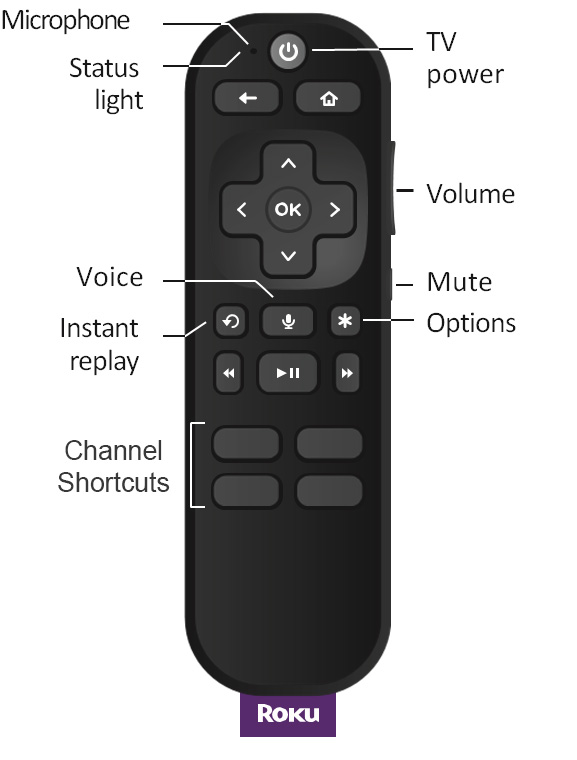
Roku Voice Remote
Features
- Channel shortcut buttons
- Push-to-talk voice
- TV controls
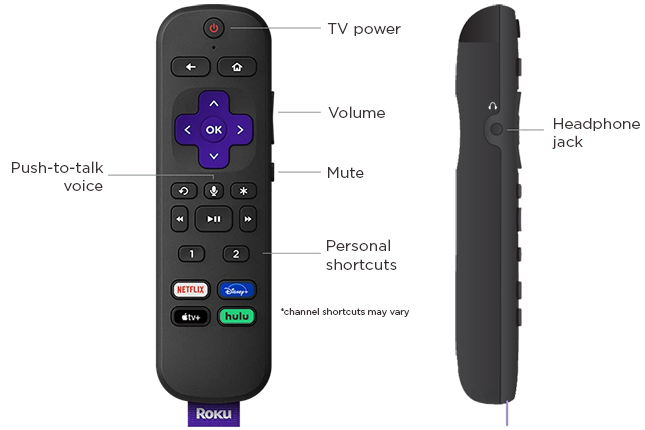
Roku Enhanced Voice Remote
Features
- Channel shortcut buttons
- Push-to-talk voice
- TV controls
- Headphone Mode
- Personal shortcuts (available on some models - look for buttons labeled 1 and 2)
- Lost remote finder (available on some models - look for small speaker holes on the back of the remote)
Roku Voice Remote Pro
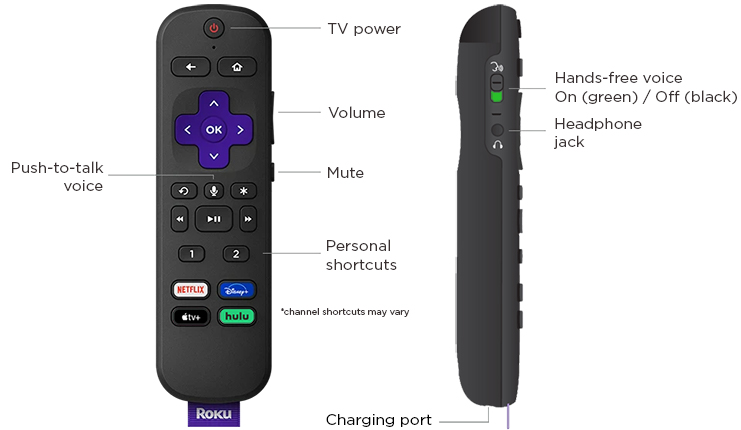
Features
- Channel shortcut buttons
- Push-to-talk voice
- TV controls
- Headphone Mode
- Personal shortcuts
- Lost remote finder
- Hands-free voice
- Rechargeable battery
For more information, check out the detailed overview for the Roku Voice Remote Pro.
How to set up your Roku voice remote
If you have a voice remote and need help setting it up, refer to the articles below:
What to do if you have a problem with your voice remote
Visit one of the articles below to help resolve an issue with your Roku voice remote.
Last updated at 3/3/2026 2:49:36 AM
Was this article helpful?
Related articles
Need more help?
