How do I pause live television on my Roku TV™?
Live TV Pause is a feature that allows you to pause up to 90 minutes of live television.
How does it work?
Live TV Pause is only available on the Antenna TV input of your Roku TV™ and requires a dedicated USB 2.0 compatible flash drive with at least 16GB of storage for recording the video.
To pause live television, press the Play/Pause button  on your Roku TV remote control. Even if you do not pause, you can rewind the current channel up to 90 minutes, or to the point where you first tuned to that channel. As soon as you tune to another channel, power off the TV, or leave the Antenna TV input, the place where you paused the program will be lost.
After being paused for 90 minutes, playback begins automatically.
USB Flash Drive Requirements
Live TV Pause requires a USB 2.0 compatible flash drive with at least 16GB of storage. 16GB is the minimum size required to hold 90 minutes of paused TV. USB drives larger than 16GB will not increase the amount of pause time.
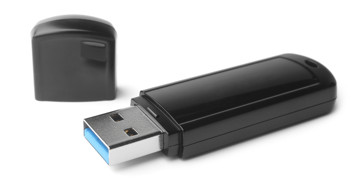
WARNING: Live TV Pause will reformat the USB drive and everything on the drive will be erased. Later, if you wish to use the drive for something other than Live TV Pause it will need to be reformatted. During reformatting the drive will be tested to ensure that it can read and write fast enough to support live video recording.
Note: USB hubs are not supported. If your Roku TV has a single USB port, then you will need to alternate USB drives to use Live TV Pause and play personal media (photos, music, and video).USB Flash Drive RequirementsLive TV Pause requires a USB 2.0 compatible flash drive with at least 16GB of storage. 16GB is the minimum size required to hold 90 minutes of paused TV. USB drives larger than 16GB will not increase the amount of pause time.
Enabling Live TV Pause
Plug the USB drive into the USB port on the back or side of your Roku TV. You will be prompted to reformat the USB drive. A message may prompt you to launch a media player, select Don’t launch.
To enable Live TV Pause:
- If not already completed, setup the Antenna TV input on your Roku TV. On completion you will be prompted to Set up Live TV Pause.
- If the Antenna TV input is already setup, press the Home button
 on your Roku TV remote to go to the Roku main screen, and then perform a, b or c:
 - Follow the on-screen instructions to complete setup.
Disabling Live TV Pause
Unplugging the USB drive will automatically disable Live TV Pause.
Alternatively, press the Home button on your Roku TV remote to go to the Roku main screen, and then either:
- Highlight the Antenna TV input, press the Star button
 to bring up the options menu and select Disable Live TV.
 - Go to Settings > TV Inputs > Antenna TV > Live TV Pause and choose Disable.
Note: Disabling Live TV Pause while watching live television will immediately jump you to the live point.
Troubleshooting Live TV Pause
You can get help if the video is blocky or blacks out when using Live TV Pause or the paused video is lost after the screensaver appears.
Last updated at 2/23/2026 2:06:31 AM
Was this article helpful?
Related articles
Need more help?
