How to connect your Roku streaming device to the Internet
When you set up your Roku® streaming player or Roku TV™, you’ll be asked to connect to the Internet using Wi-Fi or an Ethernet cable. You will need to connect to the Internet to stream your favourite shows and movies and get updates. If you need help, learn how to fix network connection issues. If you are having issues connecting a Roku Smart Home device, learn how to fix offline issues.
How to connect your Roku streaming device during set-up
When you turn on your TV or player for the first time, it will ask you to connect to the Internet. After set-up, you can use your device offline but only for HDMI, cable or over-the-air broadcasts.
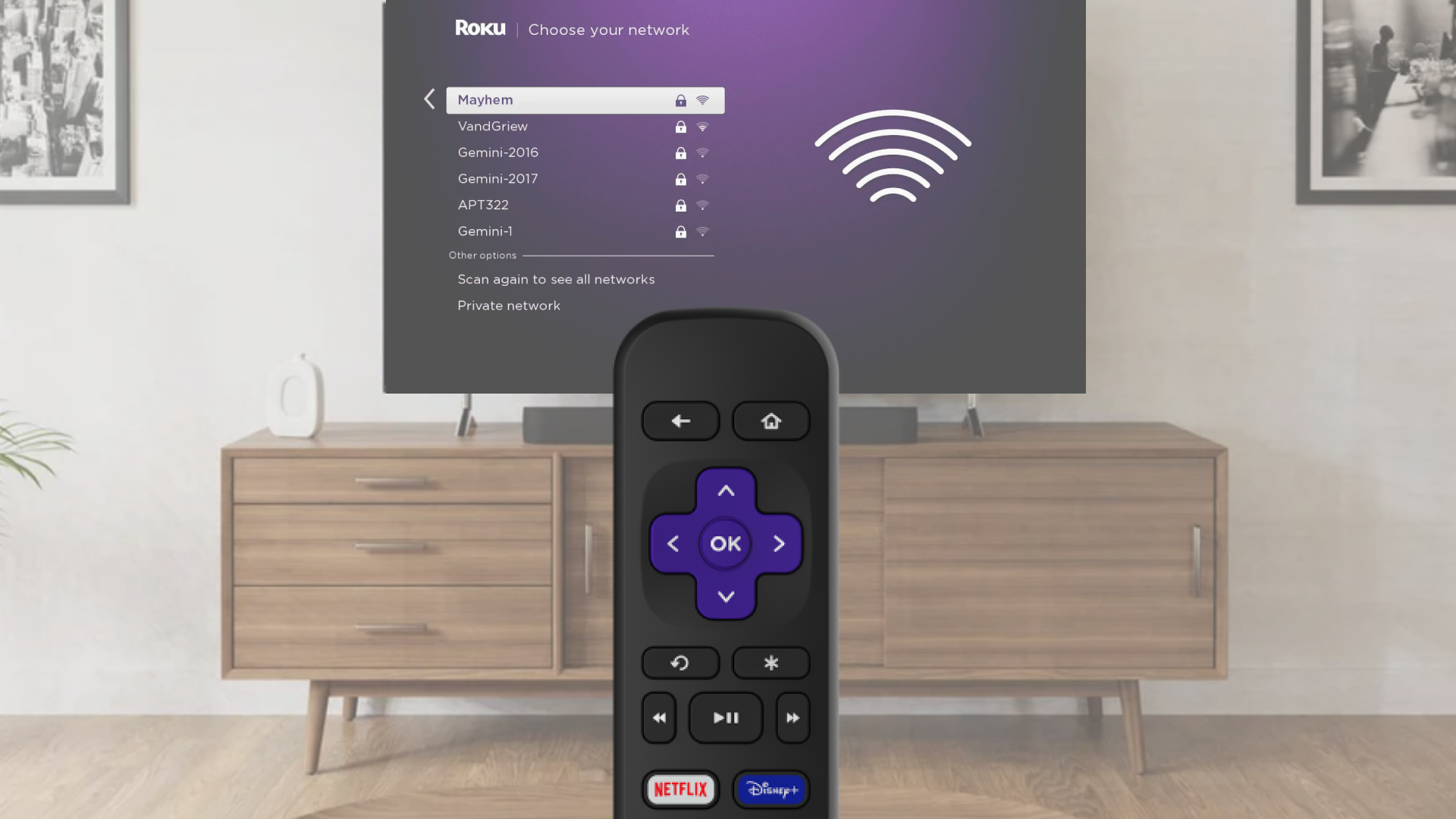
Choose Wi-Fi and connect
- Select Wireless when asked
- Pick your Wi-Fi network from the list
- If your network is missing, choose Scan again
- Enter your Wi-Fi password (it is case-sensitive)
- Tap Connect and finish following the on-screen steps
Use an Ethernet cable for a wired connection (Optional)
- Plug one end of an Ethernet cable into your TV or player
- Plug the other end into your router or modem
- On screen, choose Wired
- Follow the steps to complete setup
Change your network anytime
If you want to connect to a different Wi-Fi network or switch to wired:
- Press the Home
 button on your Roku remote
- Go to Settings > Network > Set up connection
- Choose Wired or Wireless
- If using Wi-Fi, pick your network and enter the password
- Your device will connect and show your network info
- If you do not see your Wi-Fi network, select Scan again to see all networks
- If you need to connect to a network that requires signing in through a browser, select I am at a hotel or dorm
- Press the Home
Use a mobile hotspot if needed
No Wi-Fi available? Try using your phone’s hotspot:
- Turn on the hotspot from your phone’s settings
- On your Roku device, select Wireless
- Choose your wireless network from the list of available Wi-Fi networks
- If you do not see your network, select Scan again to see all networks
- Enter your network password
- Select Connect
- Follow the on-screen instructions to complete the rest of the set up process

Note: Some Roku players support a wired Ethernet connection with a USB adapter.
Note: Hotspots use mobile data, and streaming or updates can use a lot. Check with your wireless provider for data limits.
Last updated at 3/27/2026 1:32:24 PM
Was this article helpful?
Related articles
Need more help?
