How to change the display type on your Roku streaming player
What is resolution and frame rate?
Resolution is the measure of how much detail you can see on the screen. Typical resolutions on TVs today are 720p, 1080p and High Dynamic Range (4K), with some 4K TVs also supporting higher frame rates and more color information with High Dynamic Range (HDR). The higher the resolution, the sharper and more realistic the image appears.
When playing video, what you see is a quick succession of still images, or frames, which creates the illusion of motion or animation. The number of frames displayed each second is known as the frame rate and is measured in frames per second (fps), or frequency (Hz). The higher the frame rate, the smoother the motion appears.
How to configure your player to detect the best resolution and frame rate
During setup, your Roku streaming player will analyze the HDMI® connection to determine the resolutions and frame rates supported by your TV. If your streaming player can determine the best configuration for your TV, the guided setup process will automatically select the best settings, so you do not have to manually configure the settings. The automatic setting is appropriate for most situations.
How to change the display type
If your Roku streaming player is unable to correctly detect the capabilities of your TV, you may wish to configure the display type on your own. Follow the steps below to manually change your display type setting.
Press Home
 on your Roku remote
Scroll and select Settings
Select Display type
Select one of the available display types and press OK
 on your remote
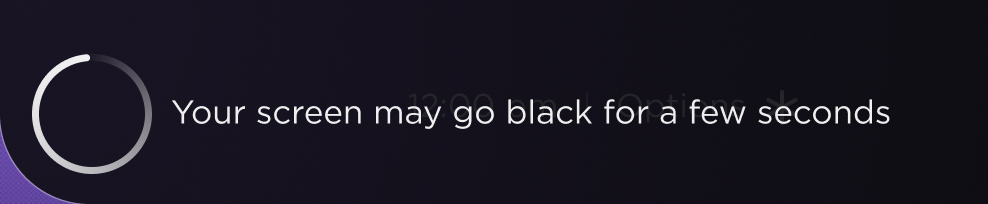
- Your screen may go black for a few seconds while the display setting is changed
- When an image is shown, select Yes, I can see it and press OK on your remote
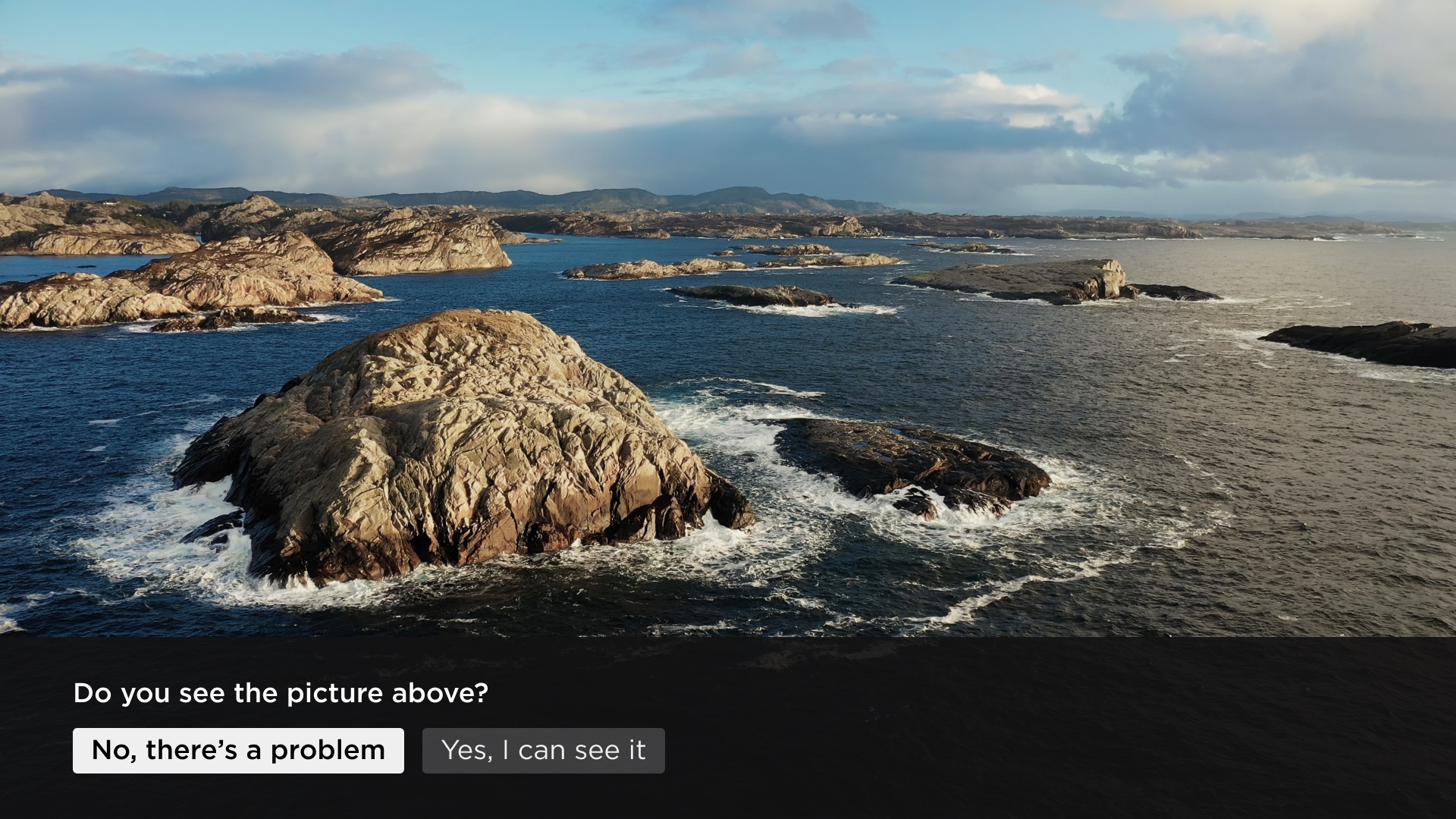
Your screen will return to the Display type menu
- A check will appear next to the new display setting
Note: If you receive a message indicating your TV does not support a display type, you can still select the display type and try it anyway.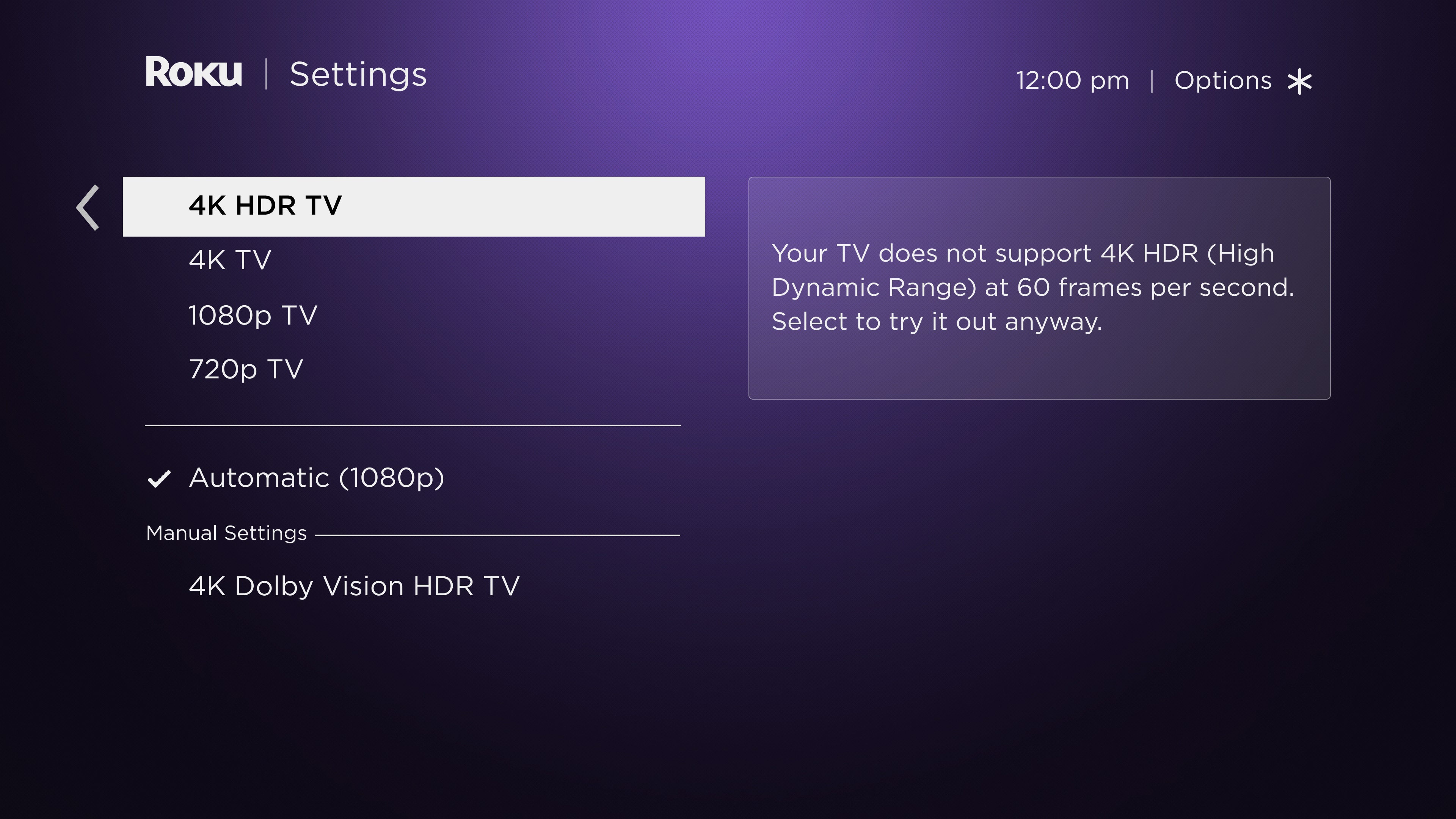
What to do if there is no picture after changing the display type
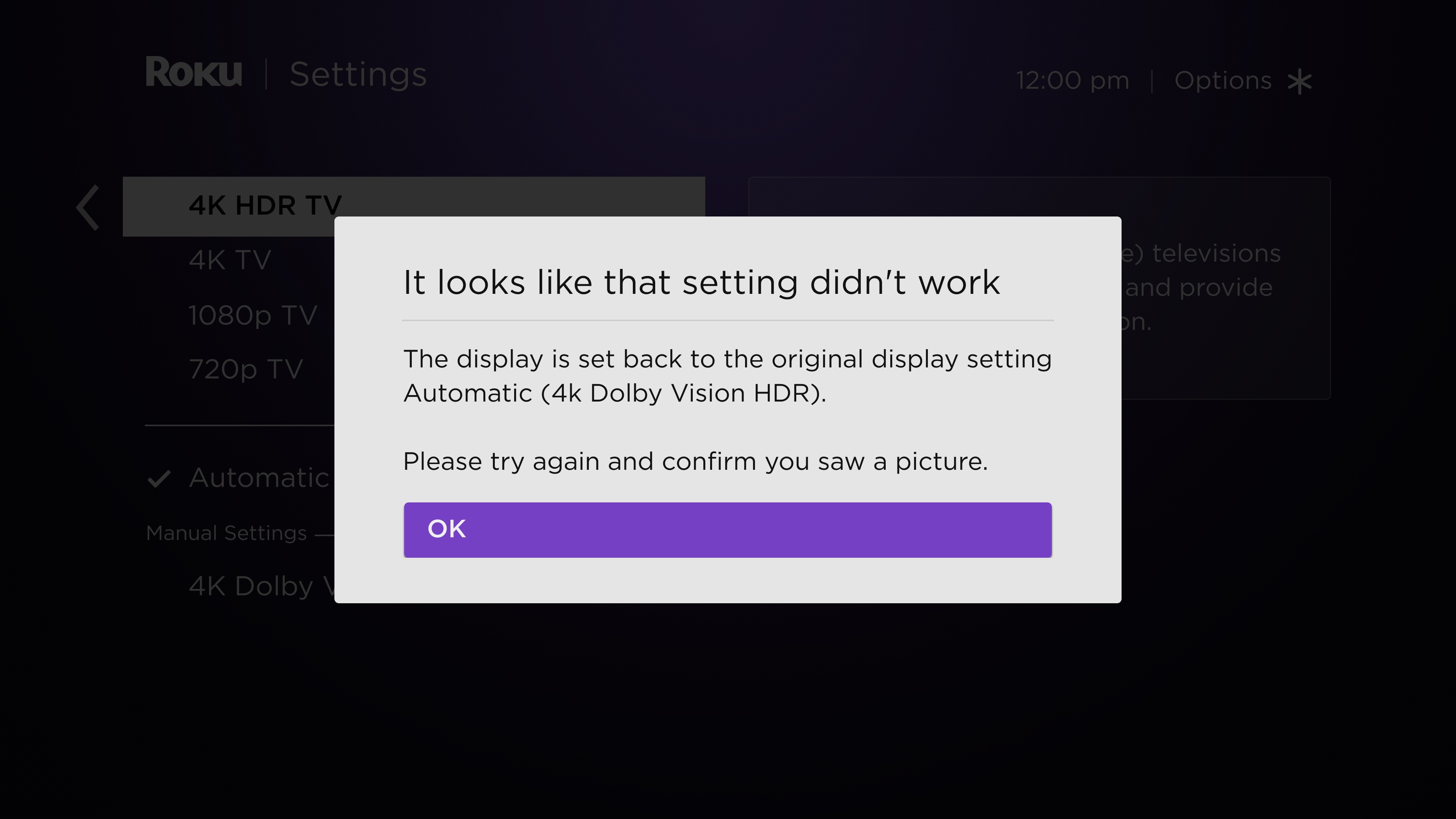
If you do not see a picture after choosing the new setting, your TV does not support the resolution or frame rate. Your streaming player will revert to the previous setting after 20 seconds. If you believe your TV supports the desired display type, but you continue to see no picture, review the setup requirements for 4K or the setup requirements for HDR.
Last updated at 3/12/2026 7:58:28 PM
Was this article helpful?
Related articles
Need more help?
