How to attach your Roku® streaming player using the adhesive strip
How to attach your Roku® streaming player using the adhesive strip
Background
Some Roku streaming players ship with a double-sided, removable adhesive strip that can be used to securely attach your player to a flat surface such as a cabinet, table or even somewhere on your television.
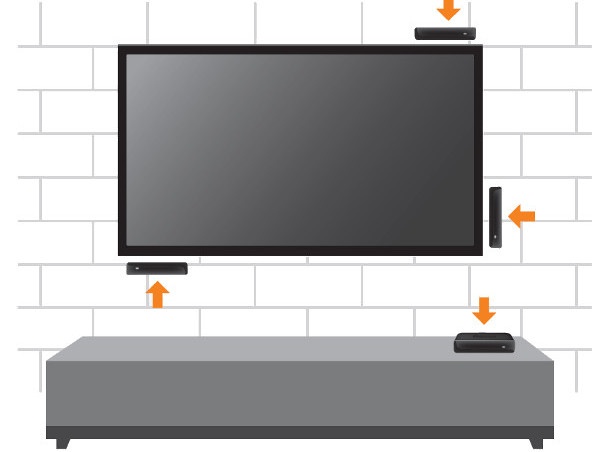
Use of the adhesive strip is optional. It is designed to be removable without leaving a sticky residue, and as a result, can only be used one time. Should you choose to attach your player to a flat surface, it is recommended you only use the included strip.
WARNING: It is important to read the installation and removal instructions carefully to ensure correct usage. Incorrect usage could result in property damage.Positioning a player controlled by a simple remote
Some Roku players that ship with an adhesive strip come with a simple remote that uses invisible infrared (IR) light to transmit remote button presses. If you need help determining if you have a simple remote, review guidelines for determining the type of remote used by your Roku player.
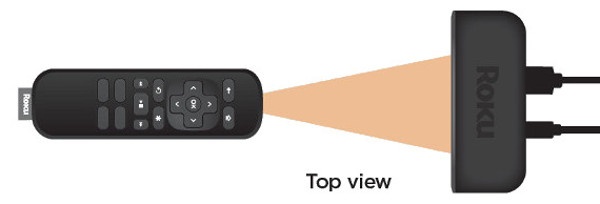
For a simple remote to operate reliably, it must be pointed directly at the Roku player when pressing buttons, and there must be no obstructions that could block the signal from traveling from the remote to the front of the player (where the IR receiver is located). For optimal performance, you must adhere to the following guidelines:
- Position the Roku player in such a way that your Roku remote can be pointed directly at the flat, front face (where the LED appears when powered on) without obstruction.
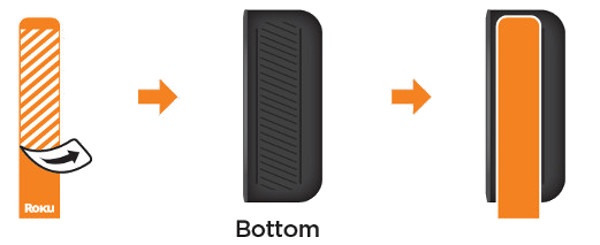
- Ensure the adhesive strip will not be attached to the front edge of the Roku player, otherwise it will obscure the IR signal from the remote. Always attach the adhesive strip to the bottom of the player:
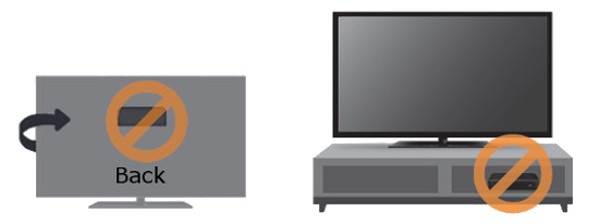
- Do not put the player in a location that prohibits the IR signal from getting to the front of the player, such as behind the TV or inside a cabinet.
Positioning a player controlled by a voice remote
Some Roku streaming players that ship with an adhesive strip, come with a voice remote that like the name states, can literally be pointed anywhere when pressing buttons. If you need help determining if you have an voice remote, review guidelines for determining the type of remote used by your Roku player.
Unlike a player controlled by a simple remote, a player controlled by voice remote can be installed behind the TV or another nearby location that is out of sight. However, it is still important you avoid placing it anywhere it may overheat like the inside of a closed cabinet.
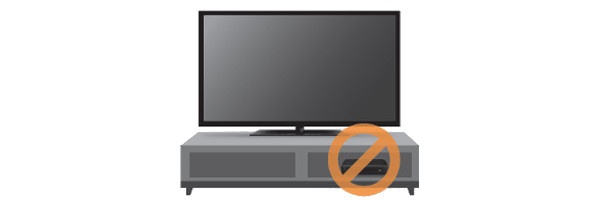
Attaching your Roku player
Once you have determined where you are going to place your Roku player, follow the instructions below.
Make sure the flat surface where you are attaching your player is clean.
Note: Remember, if your player is controlled by a simple remote, the location must not be obstructed.- Remove the striped liner from the double-sided adhesive strip and press the adhesive to the bottom of the player.
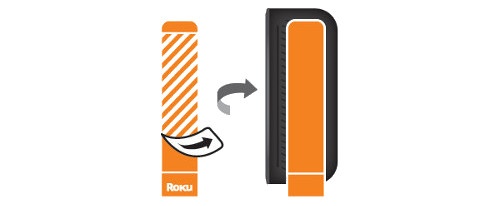
- Remove the other liner, and firmly press the player to the desired location and hold for 30 seconds.
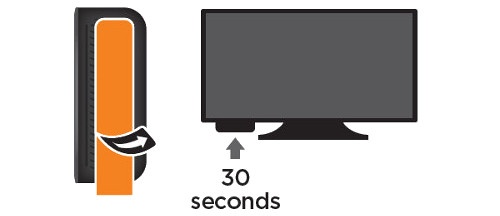
Removing the adhesive strip
To remove the adhesive strip, follow these steps:
- Gently pull the adhesive strip sideways (do not pull the adhesive strip towards you).

- Stretch the adhesive strip slowly to the side (at least 15 inches) to release.
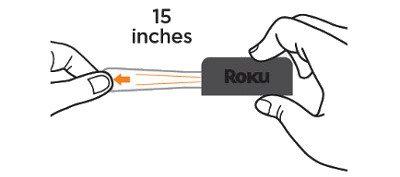
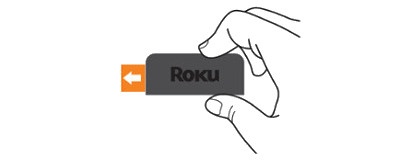
- Gently pull the adhesive strip sideways (do not pull the adhesive strip towards you).
- Stretch the adhesive strip slowly to the side (at least 15 inches) to release.
Last updated at 3/12/2026 6:49:45 PM
Was this article helpful?
Related articles
Need more help?
