How to use USB to update your unconnected Roku TV system
Activating your Roku TV™ system ensures that it is running the latest version of Roku® OS software. Any time your Roku TV system is connected to the internet, it checks for software updates every 24 to 36 hours. When a new version is available, it is automatically downloaded and installed without interrupting use of your TV. You you can also manually check for new software updates.
If your Roku TV system is not connected to the internet, software updates must be done manually by first downloading a file to your computer, copying it to a USB flash drive, and then connecting that flash drive to your TV.
Updating software if you have not activated your Roku TV system
The following instructions assume that you have not activated your Roku TV system and that you selected Connect to the internet later during the initial setup and activation process. To update the software manually, you need a standard USB 2.0 flash drive that is 256MB or larger. You also need to move between your computer (not your smartphone) and TV as detailed below.

Note: Some Roku TV systems require an internet connection to complete setup.
Download the update file on your computer
- Open a web browser and go to tvupdate.roku.com.
- Choose the brand of your Roku TV system (e.g., TCL).
- Enter your Roku TV Hardware ID and Serial Number. The Hardware ID appears as 4 numbers followed by a letter and the Serial Number is a combination of 12 numbers and/or letters. To find this information, go to Settings > System > About on your TV.
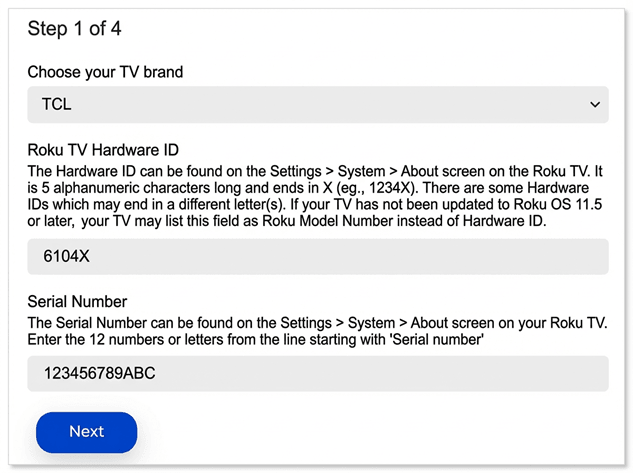
- Select Download Software to get the update.roku installer file downloaded to your computer.
- Locate the update.roku file on your computer. By default, it is often in a Downloads folder.
- Insert the USB flash drive and copy the update.roku file to the flash drive. Do not put it in a subfolder.
Once the transfer is complete, remove the USB flash drive from your computer and move it to your TV.
Plug the USB flash drive into your TV
- Connect the USB flash drive to the USB port on your TV
- Press the Home button
 on your TV remote
 - Select Settings
- Select System
- Select System update
- Select I can’t connect
Your TV validates the file on the USB flash drive and displays a 12-digit code on the TV screen. If you see the message "Contents of the update file are invalid", your TV is already running the latest software version.
Note: If you see the message "Update file could not be opened. Please try again", the format of the USB flash drive is likely not recognized. Visit the Formatting your USB flash drive section below for help.
Enter the code on your computer
- Return to your computer and enter the 12-digit code
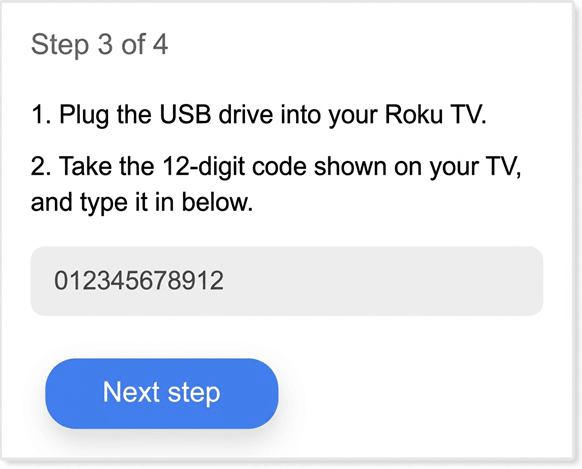
- After you enter the code correctly, a new 6-digit code appears on your computer screen
Complete the update on your TV
Return to your TV and enter the 6-digit code using your TV remote. The software update begins immediately, and your TV restarts once complete. After your TV restarts, you can remove the USB flash drive.
Formatting your USB flash drive
Use the instructions below if you need to format your USB flash drive.
WARNING: All data is erased during this process.
Format using your PC
- Plug the USB flash drive into your computer
- Open your Control Panel and select Administrative Tools
- Click on Computer Management
- Click on Disk Management
- Right-click the drive letter that corresponds to your USB flash drive
- Select Format
- If the flash drive capacity is more than 2GB, select FAT32. If it is less than 2GB, select FAT16
- Click OK to format your drive
Format using your MAC
- Plug the USB flash drive into your computer
- Open Finder and search for "Disk Utility"
- Select the USB flash drive from the left panel
- Click on the Erase tab on the right panel
- Select MS-DOS (FAT) from the drop-down menu
- Click the Erase button
- Click the Erase button again when prompted to format your drive
Last updated at 2/25/2026 3:08:54 AM
Was this article helpful?
Related articles
Need more help?
