From the color and style of the menus to the image that appears in the background to the screensaver and navigation sounds, a theme pack defines the overall look and feel of the Roku interface. Changing the theme pack is a simple way to personalize your Roku experience with a single selection. A default theme pack is included with your Roku streaming player or Roku TV™, while additional theme packs are available for free download from the settings menu on your Roku device.
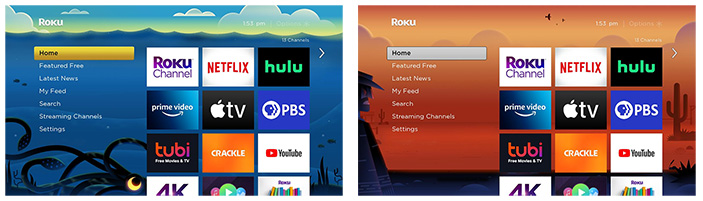
How to browse new theme packs or change the current theme pack
You can browse and change theme packs from the Settings menu using the steps below.

Tip: When browsing lists or tile grids, press Rewind or Fast forward
 on your Roku remote to jump up or down one page at a time.
Once your Roku device is using the new theme pack, you can change individual elements such as wallpaper, screensaver, or navigation sounds. To do this, open the Theme menu using steps 1 through 3 above, and then go to Wallpapers, Screensavers, or Navigation sounds to browse and choose individual options.
Other ways to personalize the Roku interface
In addition to selecting a theme pack, you can further personalize your Roku device by:
Last updated at 2/19/2026 7:35:45 PM
Was this article helpful?
Related articles
Need more help?
