Your Roku device includes an opt-in feature called More Ways to Watch that allows you to stream live shows and movies from the beginning, find full episodes of shows you missed, and discover similar shows that you might like.

Note:
- More Ways to Watch is currently supported only in the United States.
- To use More Ways to Watch, you’ll need to enable the Smart TV Experience on your Roku device, as described below.
- Your Roku device must be activated and linked to your Roku account, to use More Ways to Watch.
How More Ways to Watch works
More Ways to Watch is part of the Smart TV Experience on your Roku player or TV. To enhance your viewing experience, the Roku Smart TV Experience uses Automatic Content Recognition (ACR) to collect information about the movies, TV shows, or games you're watching through streaming, antenna, or other connected devices.
If you’ve used a music identification app (e.g., Shazam, SoundHound), you’ve used content recognition. Roku ACR generates an encrypted fingerprint from a sample of pixels on your screen. This fingerprint is not readable to the human eye. The technology then matches this fingerprint to a Roku’s catalog of popular content, games, and ads to figure out which content you are watching. If the content is not in Roku’s catalog, ACR will not find a match. It will not match to personal videos, for instance.
After you enable ACR, your Roku device may detect what you’re watching and find the same movie or show, or related ones, available from streaming apps.
Getting ready to use More Ways to Watch
To use More Ways to Watch, you’ll need to enable ACR. ACR is not enabled out of the box. You can enable ACR from Settings. Similarly, you can always disable it from Settings as well.
Here's how:
- Press Home
 on your Roku remote
 - From the left-hand menu, choose Settings
- Select Privacy > Smart TV Experience
Enable the following options:
- Automatic Content Recognition (ACR) : Highlight the checkbox and press OK to enable ACR. Press OK again to disable it.
More Ways to Watch : If you enable this setting, More Ways to Watch notifications appear at the bottom of the screen for a few seconds when you switch to the input of a connected device. To see these notifications, highlight the checkbox and press OK
If you would rather not see notifications, which usually appear once a day, you can turn the setting off anytime. To enable More Ways to Watch, select Automated Content Recognition (ACR) as well.
Note: By enabling ACR, you give Roku permission to use ACR to collect information about the shows and movies you watch. If you choose to enable it and later decide you no longer want to use ACR, you can disable the feature anytime. If you enable this setting and then later disable it, the data that was collected or used while the setting was enabled will be retained by Roku.
Note: A More Ways to Watch message won’t appear when browsing streaming TV channels from The Roku Channel.
How to use More Ways to Watch
After you enable More Ways to Watch, your Roku device may detect what you’re watching on your TV Tuner or other connected device and find the same movie or show, or related ones, available from streaming apps.
- Go to the Roku Home screen
- In the left-hand menu, select Live TV. This will open the Live TV Channel Guide, which includes 150+ live streaming channels, as well as broadcast channels if you’re using an antenna or cable/satellite box. You can also reach the Channel Guide by choosing The Roku Channel from the Home screen and selecting Live TV.
After you opt-in to ACR, some broadcast programs may display a More Ways to Watch message as shown here:
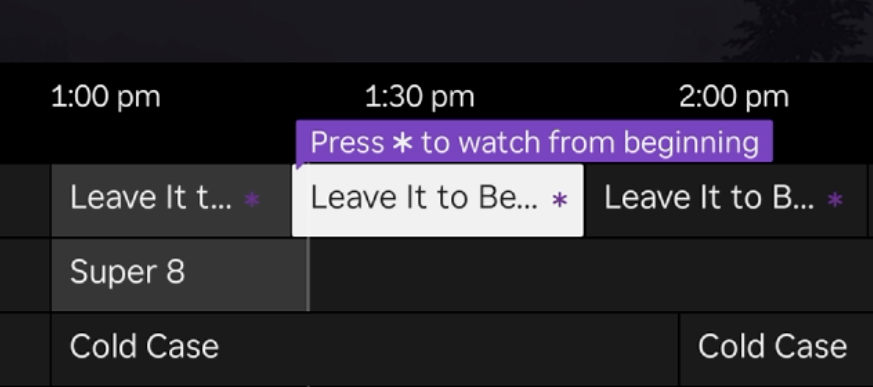
- When you see a More Ways to Watch indicator, press Star on your Roku remote to view available options, including:
- Watch from beginning: See which apps offer the movie or show you’re watching, then choose your preferred app to start from the beginning. Some apps may require subscriptions.
- More episodes: Jump to the episode list of the current season of the series you’re watching. From there, you can navigate to all available episodes in all available seasons within the app you select.
- More like this: See movies or shows that are similar to the movie or show you’re watching. Just highlight a show, discover which apps offer it, how much it costs to watch on those apps, and then start watching.
Enable the Roku Smart TV Experience
If you see the Smart TV Experience screen on your Roku device, use your Roku remote or the Roku Mobile App to enable the Smart TV Experience. If your device is set to another input, like a cable box or game console, be sure you’re using the Roku remote—not the other device’s remote. To continue, select ‘Agree' or ‘Manage preferences.' To manage preferences, select either ‘Automatic Content Recognition (ACR),’ ‘Viewing Information Disclosure,’ or ‘Decline’ to proceed.
Note: If you don’t have your Roku remote handy, you can download the Roku Mobile App and use your phone as a remote. (Remotes from your Roku streaming player, cable box, or game console won’t work.)
Enable Smart TV Experience from settings
- Press Home on your Roku remote
- From the left-hand menu, choose Settings
- Select Privacy > Smart TV Experience
Enable the following options:
- Automatic Content Recognition (ACR): Highlight the checkbox and press OK to enable ACR. Press OK again to disable it.
- More Ways to Watch: If you turn this setting on, More Ways to Watch notifications appear at the bottom of the screen for a few seconds when you switch to the input of a connected device. To see these notifications, highlight the checkbox and press OK
If you would rather not see notifications, which usually appear once a day, you can turn the setting off anytime. To enable More Ways to Watch, select Automated Content Recognition (ACR) as well.
Note: By enabling ACR, you give Roku permission to use ACR to collect information about the shows and movies you watch. If you choose to enable it and later decide you no longer want to use ACR, you can disable the feature anytime. If you enable this setting and then later disable it, the data that was collected or used while the setting was enabled will be retained by Roku.
Enable Smart TV Experience from my.roku.com
Go to my.roku.com and sign in
Select Privacy Settings
Choose Smart TV Experience
- To opt in, toggle the setting to YES
- To opt out, toggle the setting twice until it returns to NO
Note: The default state is NO, before any selection is made.
Last updated at 6/23/2026 6:29:36 PM
Was this article helpful?
Related articles
Need more help?
