When you set up your Roku® Smart Home camera or video doorbell for the first time, Roku gives you a 14-day free trial of a Roku Smart Home Subscription. During your trial, you can take advantage of smart detection and see how it intelligently differentiates between people, packages, pets, and vehicles when motion is detected. This article provides more details about this feature and teaches you how to use it to better control what notifications you receive and what events you record.
What is smart detection?
Smart detection gives you a better idea of what is happening in and around your home when motion is detected by identifying if it is caused by a:
- Person: Learn when a trespasser is in your yard or see if your neighbor is stopping by to borrow another egg.
- Pet: See if your dog needs to go outside or capture an elusive bird visiting your garden.
- Vehicle: Find out when the pizza delivery guy pulls up or when your partner gets home after a busy day.
- Package: Know the moment that special gift arrives or when your monthly wine shipment is delivered.
Without a subscription, you get notifications for all motion events, but with smart detection, you can pick and choose exactly what motion events to be notified about.
How to choose your notifications
Use the steps below to choose the motion events that trigger a notification. If you have a Roku Outdoor Camera SE there are some additional steps that are described in the next section.
- Select your device from the Home screen
- Tap Settings
 in the corner
 - Select Notifications
- Expand Motion events
- All event types are checked by default, except Other Motion. Uncheck any that should no longer trigger a notification. Choosing to only be notified for person events can reduce your notifications by as much as 70%.
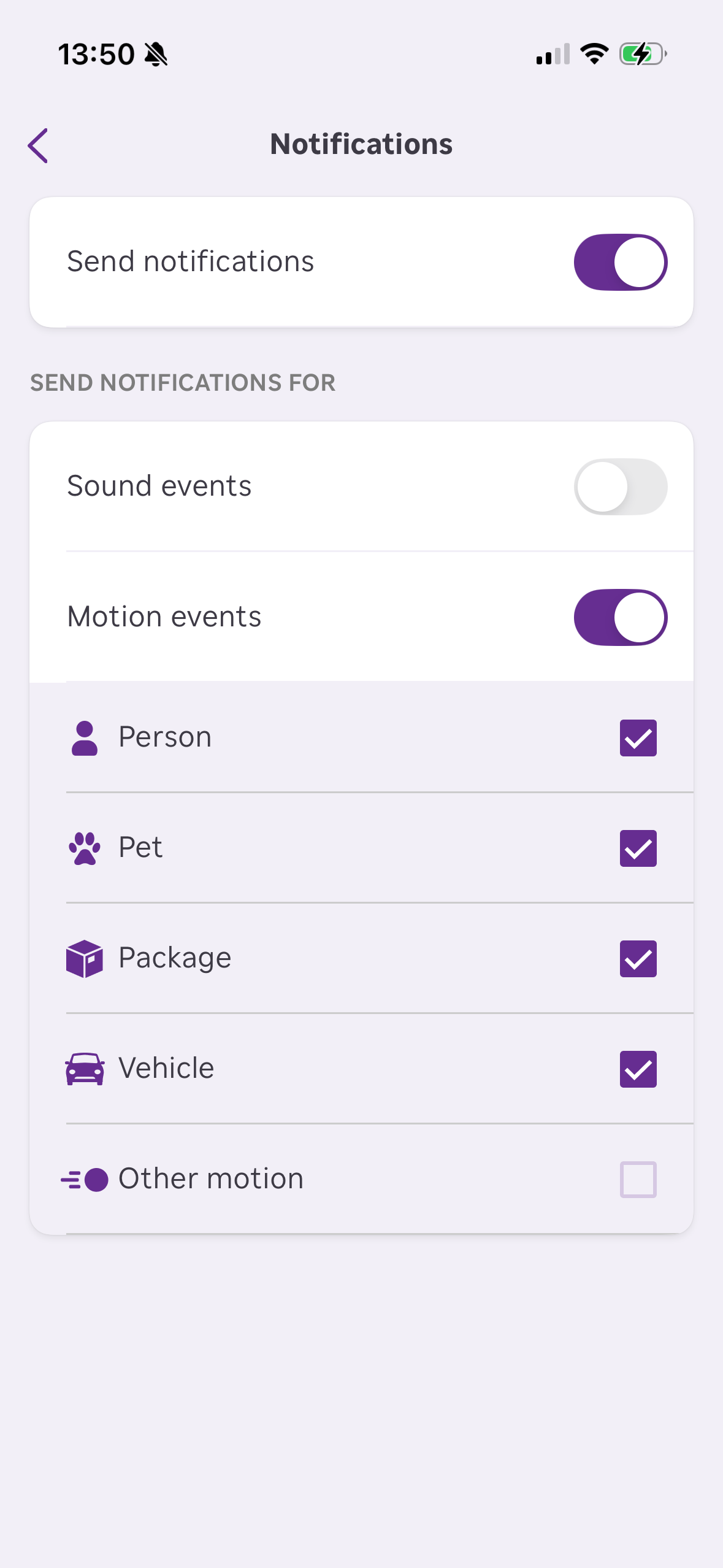
If you ever want to change your notification preferences, you can easily repeat the steps above and re-check any event.
How to choose what to record
To manage which events are recorded when a motion event is detected, follow these steps.
- Select your device from the Home screen. Make sure your camera is on and you can view the live stream.
- Tap Settings in the corner
- Select Event detection
- Toggle on Motion events
- Toggle off the event types you do not wish to record
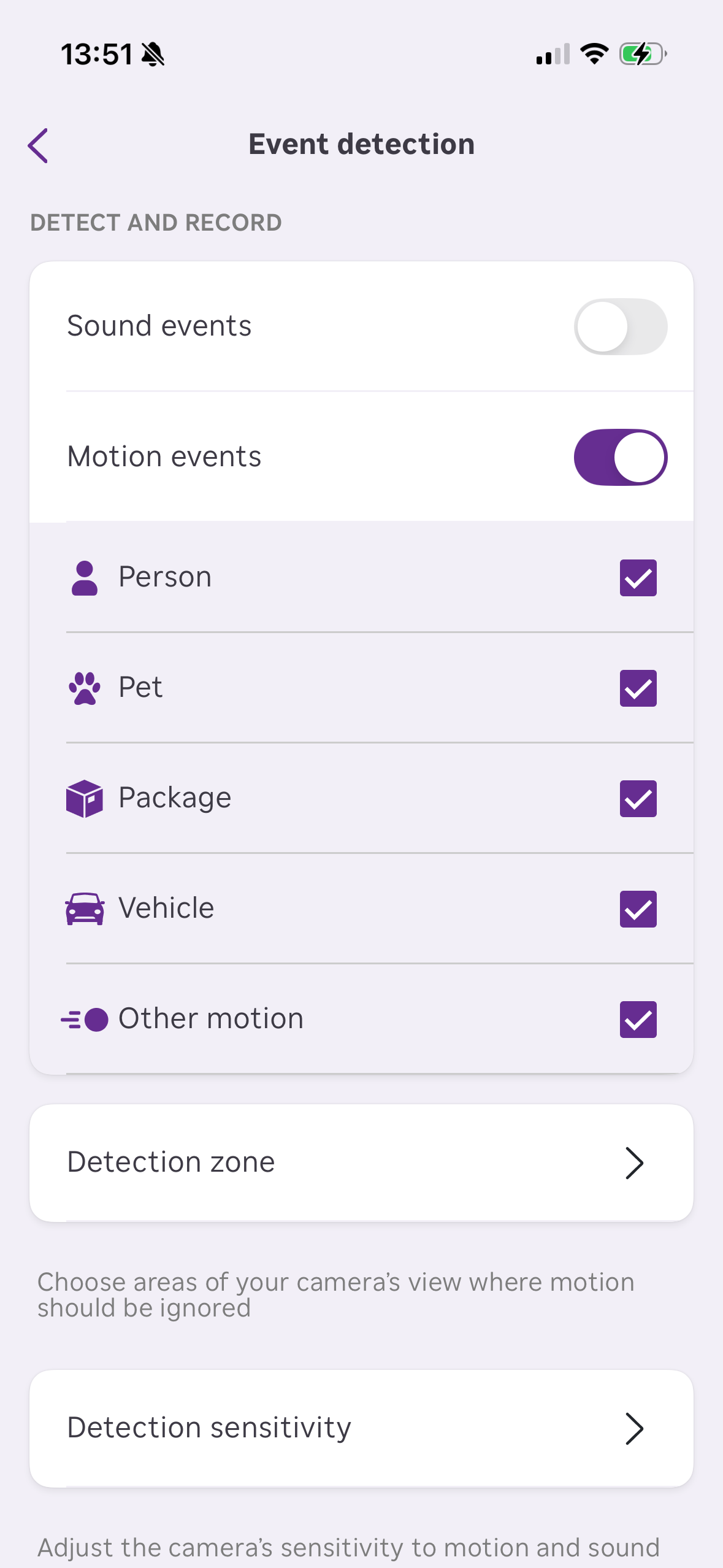
Last updated at 6/26/2026 11:12:15 PM
Was this article helpful?
Related articles
Need more help?
