When a visitor rings your Roku® Wire-free Video Doorbell SE or Roku Video Doorbell SE, a tune will play through your chime. After setting up Wire-free Video Doorbell & Chime SE or Video Doorbell & Chime SE, you can pick from a list of chime tunes and adjust the volume in the Roku Smart Home mobile app.
Which chime do I have?
Before you change the settings on your chime, you must determine which chime you have because each one has slightly different options in the smart home app. The Roku Video Doorbell SE comes with an enhanced chime that has a do not disturb feature and the Roku Video Doorbell SE comes with a chime that has a schedule feature.
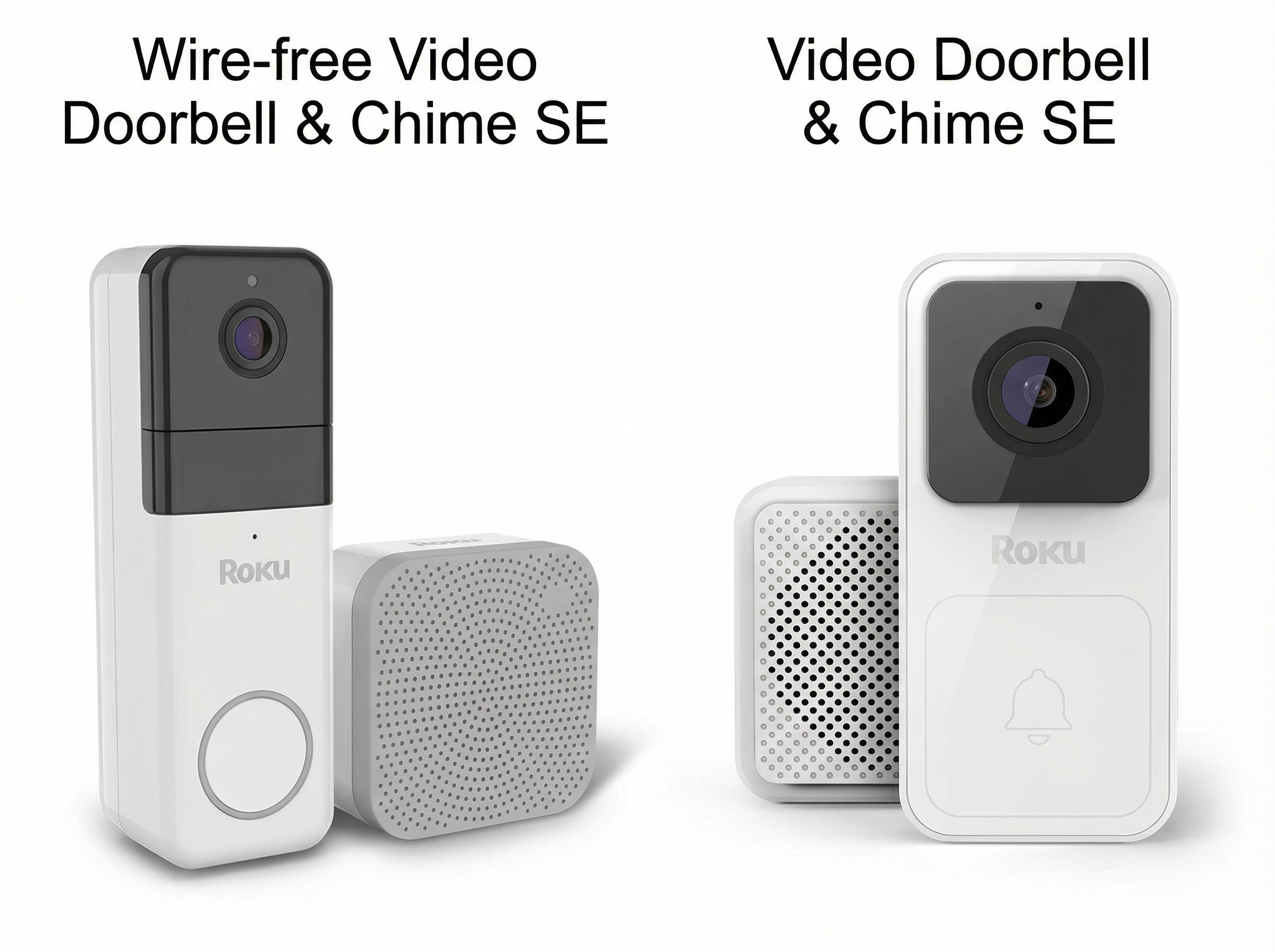
Determine your doorbell in the app
Use the steps below to identify your doorbell in the smart home app.
- Tap Home
 from the navigation bar
 - Select your doorbell
- Tap Settings
 in the corner
 - Tap Device info
Your doorbell name is listed in the device field.
How to change chime settings
In the smart home app, you can pick from a variety of chime tunes including classic doorbells and animal noises. The chime volume can also be adjusted so you can choose the right volume for your home. The tune and volume settings are accessed on the same screen in the smart home app.
Change your enhanced chime settings
Follow the steps below to change your enhanced chime settings in the app.
- Tap Home from the navigation bar
- Select your doorbell
- Tap Settings in the corner
- Tap Chime
- Tap Chime sound
- Select a tune
- Tap Save
- Your chime will play a sample of the saved tune
- Move the slider to adjust the chime volume
When you are done, your changes are saved automatically.
Change your chime settings
Follow the steps below to change your chime settings in the app.
- Tap Home from the navigation bar
- Select your doorbell
- Tap Settings in the corner
- Tap Accessories
- Select your chime
- Tap Tunes
- Move the slider to adjust the chime volume
- Select a tune and a sample will play
When you are done, your changes are saved automatically.
How to set a chime schedule
Both the enhanced chime and chime have a feature to limit when a tune is played based on the time of day. The enhanced chime has do not disturb and the chime has a schedule feature.
Configure "do not disturb" for your enhanced chime
If do not disturb is enabled, your enhanced chime will not play a tune when the doorbell is pressed. Additionally, you can set an active period for do not disturb.
Follow the steps below to turn on do not disturb in the app.
- Tap Home from the navigation bar
- Select your doorbell
- Tap Settings in the corner
- Tap Chime
- Toggle Do not disturb to on
- If you want to set active hours, toggle Period on
- Select a From and To time
To turn off do not disturb, repeat steps 1 through 5 and toggle to off. When you are done, your changes are saved automatically.
Set a schedule for your chime
If a schedule is enabled, your chime will not play a tune outside of the schedule. When All day is toggled on, your chime will always make a sound when the doorbell is pressed. If All day is toggled off, you can adjust the start time and end time for chime sounds.
Follow the steps below to change your chime schedule in the app.
- Tap Home from the navigation bar
- Select your doorbell
- Tap Settings in the corner
- Tap Accessories
- Select your chime
- Tap Schedule
- Toggle All day on or off
- If toggled off, select a Start time and End time
When you are done, your changes are saved automatically.
Why does my chime not play a tune?
The following troubleshooting steps can help fix issues when your chime is experiencing issues.
Verify your chime and doorbell are paired
If you have a Video Doorbell & Chime SE, verify your chime is paired to your doorbell in the smart home app. This troubleshooting step does not apply to the Wire-free Video Doorbell & Chime SE.
- Tap Home from the navigation bar
- Select your doorbell
- Tap Settings in the corner
- Tap Accessories
- Verify your chime is listed
If you receive a connection error or your chime is not listed, follow the steps below to pair your chime.
- Tap the plus sign
 from the navigation bar
 - Tap Next
- Follow the on-screen instructions to pair your chime
Check your chime volume
If your chime volume is 0, the chime is muted. Follow the instructions in the "How to change chime settings" section above to verify your chime volume is not muted.
Check your chime schedule
Your chime will not play a tune outside of the schedule or when do not disturb is enabled. Follow the instructions in the "How to set a chime schedule" section above to verify your chime settings are correct.
Restart your chime and doorbell
Follow the steps below to restart your chime.
- Unplug the chime from the wall outlet
- Leave the chime unplugged for 30 seconds
- Plug the chime back into the wall outlet
- Tap Home from the navigation bar
- Select your doorbell
- Tap Settings in the corner
- Scroll down and tap Restart
Wired doorbell installation:
- Locate the breaker switch that controls power to your doorbell
- Flip the switch to the OFF position
- Wait 30 seconds
- Flip the switch to the ON position
Warning: If you are unsure which breaker switch controls your doorbell or you are uncomfortable with the steps, contact a licensed electrician for assistance.
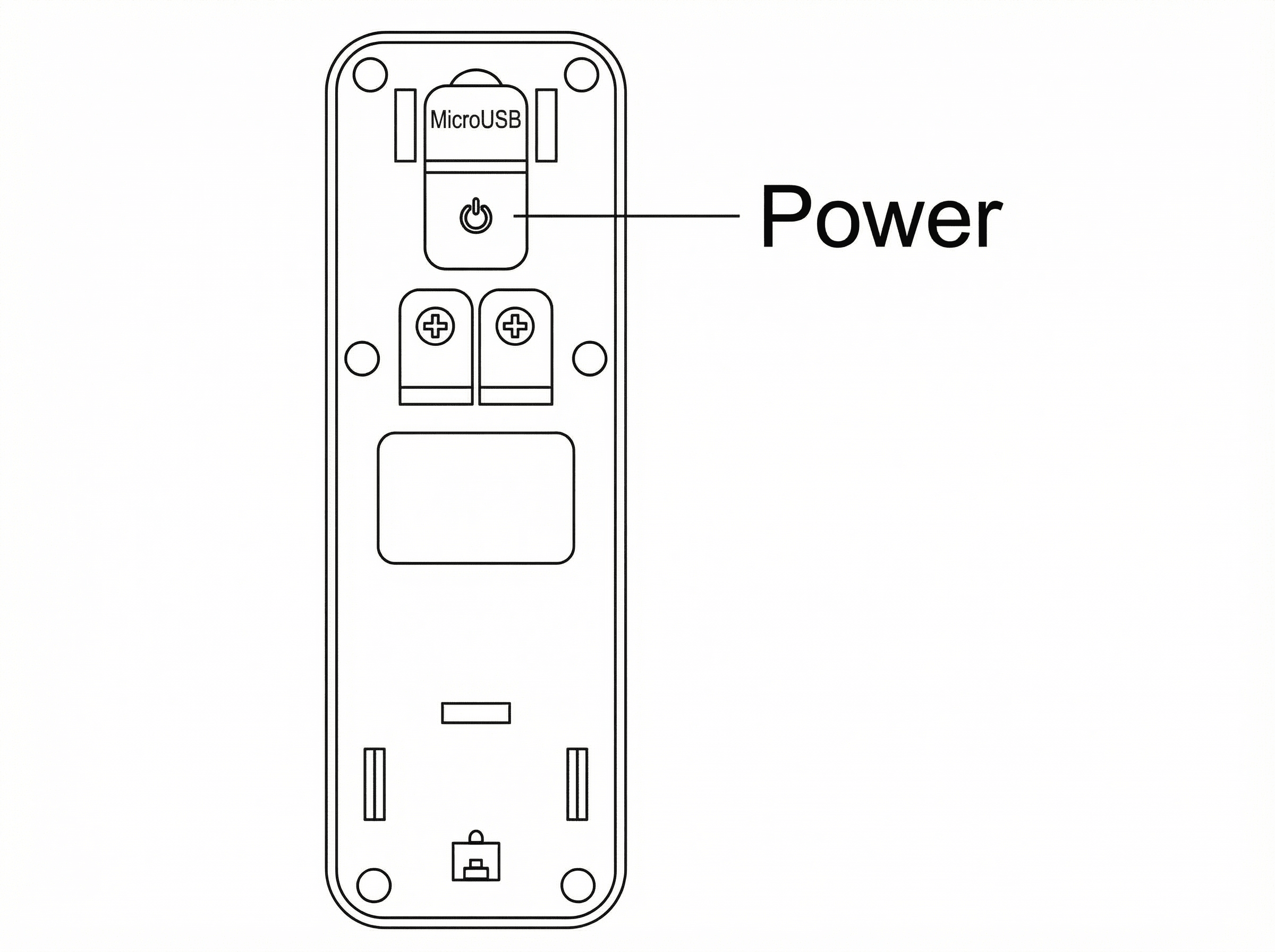
Wireless doorbell installation:
- Loosen the security screw at the bottom of the doorbell using a screwdriver
- Remove the backplate of your doorbell by sliding it down then pulling it away
- Press the Power button to turn the doorbell off
- Wait 30 seconds
- Press the Power button again to turn the doorbell on
Factory reset your chime and doorbell
If your chime is still not working after performing the troubleshooting steps above, factory reset your doorbell and chime and then follow the set up instructions for your Video Doorbell & Chime SE or Wire-free Video Doorbell & Chime SE.
Last updated at 6/26/2026 11:17:27 PM
Was this article helpful?
Related articles
Need more help?
